

If your WordPress website is not sending emails, you are not alone. Many website owners experience problems with contact form notifications, password reset emails, order confirmations, and other automated messages.
One of the most effective ways to improve WordPress email delivery is to configure SMTP correctly.
In this guide, you will learn how to set up SMTP in WordPress, configure your email provider, test email delivery, and troubleshoot common SMTP errors.
What Is SMTP?
SMTP stands for Simple Mail Transfer Protocol. It is the standard protocol used to send emails from one server to another.
By default, WordPress uses the PHP mail() function to send emails. However, depending on your hosting environment, this method may not deliver messages reliably.
SMTP allows WordPress to connect to an email server using authentication and defined server settings. This can improve email delivery reliability and make it easier to identify sending errors.
Why Should You Configure SMTP in WordPress?
Setting up SMTP can help you:
- Improve the reliability of website emails.
- Deliver contact form notifications more consistently.
- Send password reset emails.
- Receive WooCommerce order notifications.
- Authenticate outgoing messages through your email provider.
- Diagnose email delivery problems more easily.
Keep in mind that SMTP configuration alone cannot guarantee inbox placement. Your domain authentication, sender reputation, and email provider’s policies also matter.
What You Need Before Setting Up SMTP
Before starting, make sure you have:
- Access to your WordPress administrator dashboard.
- An active email account or transactional email service.
- The correct SMTP hostname, port, encryption method, username, and password.
- Permission to send email through your chosen provider.
If you use a business email address such as [email protected], your hosting provider or email service should be able to supply the correct SMTP details.
Step 1: Install an SMTP Plugin
The easiest method for most WordPress users is to install an SMTP plugin.
For this tutorial, we will use WP Mail SMTP.
- Log in to your WordPress dashboard.
- Navigate to Plugins → Add New Plugin.
- Search for WP Mail SMTP.
- Install and activate the plugin.
- Open the plugin’s settings or launch its setup wizard.
You can find the plugin and its documentation on the official WP Mail SMTP website.
Other SMTP plugins are available, but the configuration process may differ slightly.
Step 2: Choose Your Email Mailer
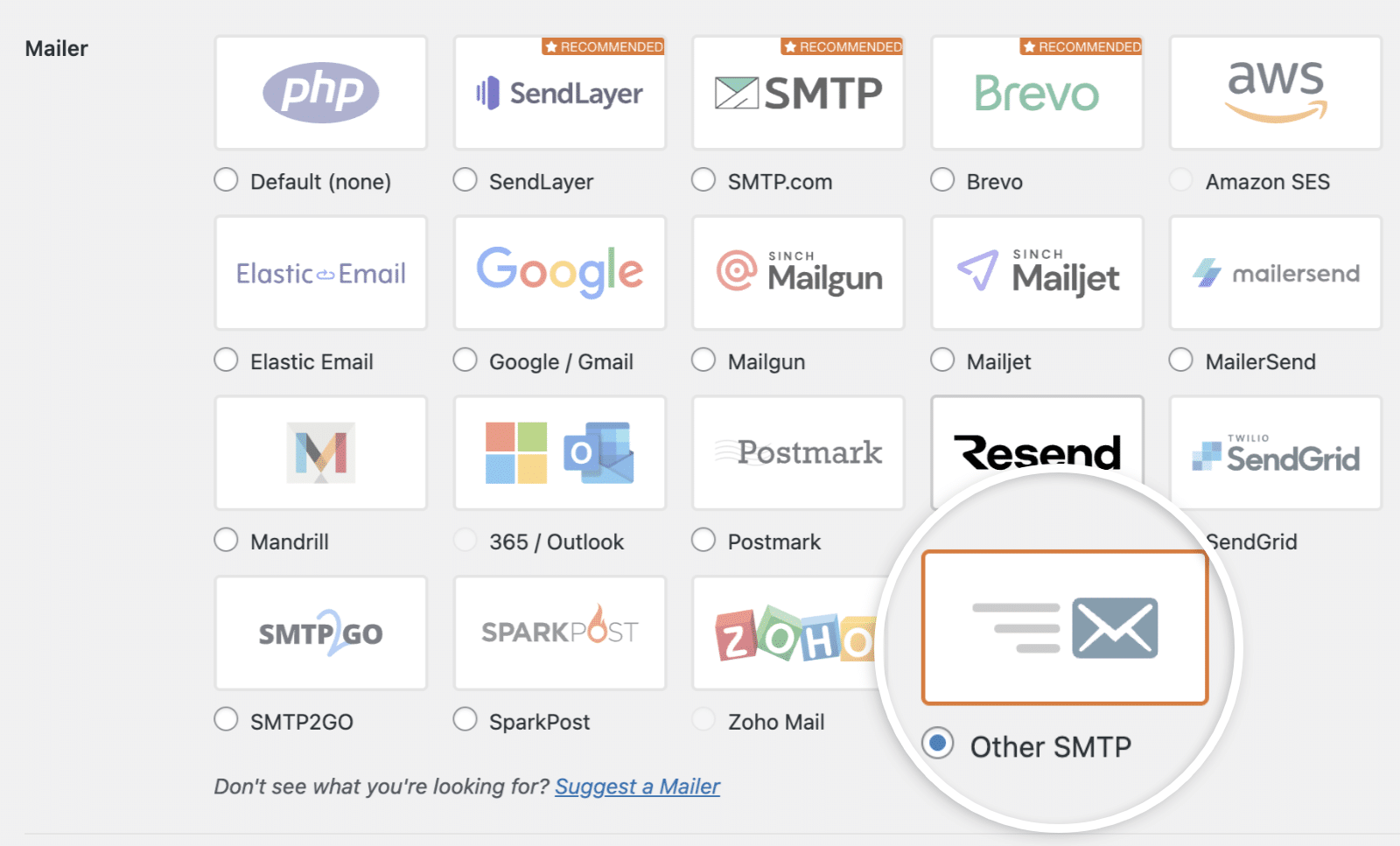
After activating the plugin, select the mailer that matches your email service.
Common options include:
- Other SMTP: For a provider that supplies traditional SMTP server credentials.
- Gmail: For supported Google email configurations.
- Brevo: For a supported transactional email setup.
- Other supported providers: Depending on the plugin version and your account.
If your hosting account includes a business email service, choose the option that lets you enter custom SMTP settings, if your provider supports it.
Do not select a mailer simply because its name looks familiar. Use the method recommended by your email provider.
Step 3: Enter Your SMTP Settings
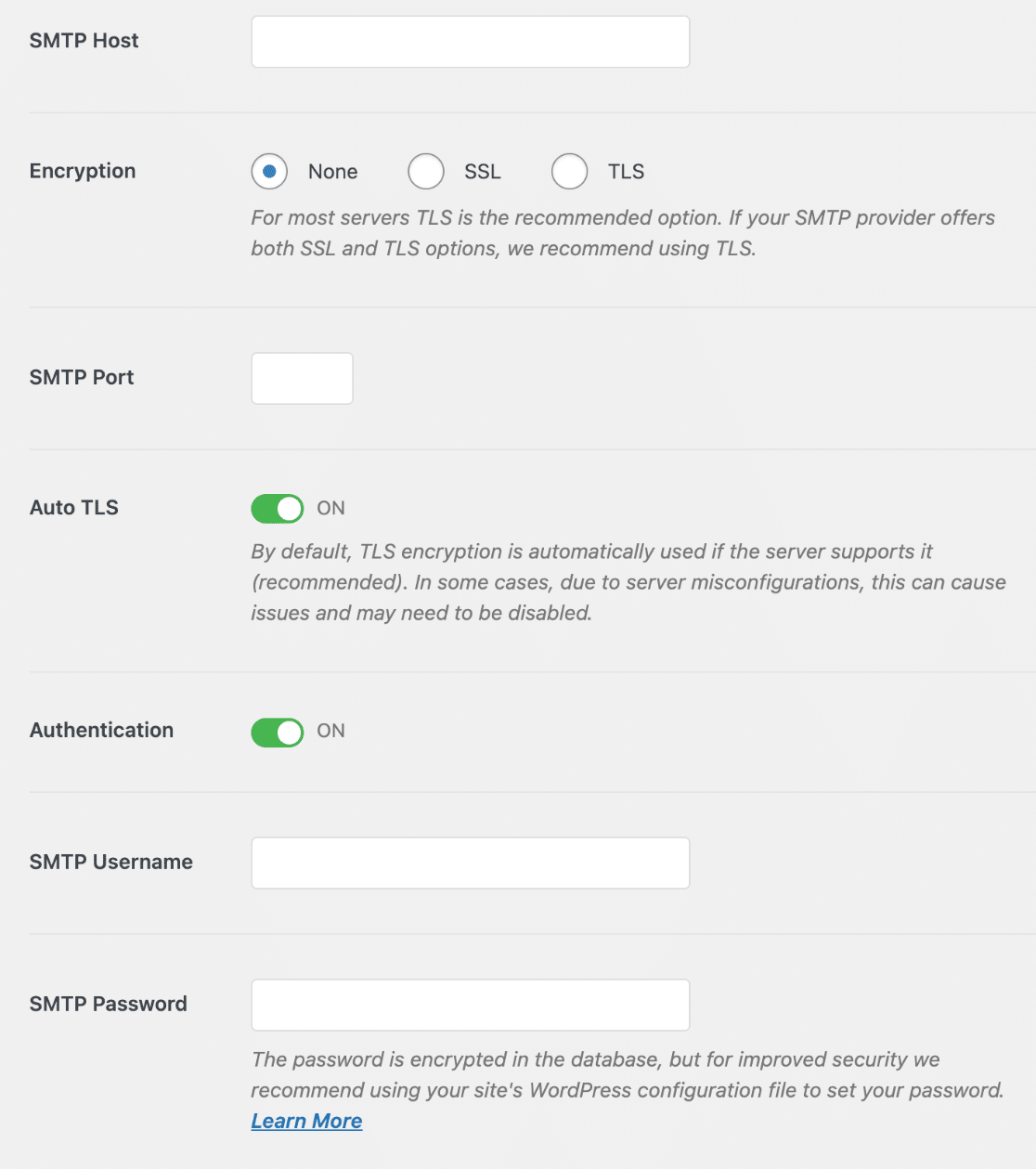
When using the Other SMTP option, you will typically need the following settings.
| Setting | What to enter |
|---|---|
| SMTP Host | The hostname provided by your email service |
| Encryption | TLS or SSL, as supported by the provider |
| SMTP Port | Commonly 587 for STARTTLS or 465 for implicit SSL |
| Authentication | Enabled |
| SMTP Username | Usually your complete email address |
| SMTP Password | Your email password or an app-specific credential, if required |
These are common configurations, not universal settings. Always follow the values supplied by your email provider.
Example SMTP Configuration
The following example shows the typical structure for a business email account. Replace the placeholder hostname and credentials with your actual details.
- SMTP Host:
mail.yourdomain.com - Encryption: TLS
- SMTP Port:
587 - Authentication: Enabled
- SMTP Username:
[email protected] - SMTP Password: Your actual email credential
Important: mail.yourdomain.com is only an example. It will work only if your provider has configured that hostname for SMTP service and its DNS and SSL certificate settings are correct.
Never publish your SMTP password or share it in screenshots or support requests.
Step 4: Configure the Sender Email Address
Set the sender email address to an account authorized by your email provider.
For example:
If the plugin provides a Force From Email option, enabling it can help ensure WordPress uses the configured sender address consistently.
You may also set a sender name, such as your business or website name.
For better authentication and deliverability, avoid using an unrelated sender address or pretending to send from an address you do not control.
Step 5: Save the Settings and Send a Test Email
After entering the configuration:
- Save your SMTP settings.
- Open the plugin’s email testing tool.
- Enter an email address you can access.
- Send a test message.
- Check your inbox and spam folder.
If the message arrives, the basic sending configuration is working. However, one successful test does not guarantee that every future message will reach the inbox.
If the test fails, review the error message before changing additional settings.
Step 6: Configure SPF, DKIM, and DMARC
SMTP authentication is only one part of reliable email delivery. Domain authentication also helps receiving mail servers verify that messages are authorized.
SPF
Sender Policy Framework (SPF) identifies the servers authorized to send email for your domain.
Your email provider should supply the correct SPF record. Publish it in your domain’s DNS settings as instructed.
Avoid adding multiple SPF records for the same domain. If you already have one, update the existing record according to your provider’s guidance.
DKIM
DomainKeys Identified Mail (DKIM) adds a cryptographic signature to outgoing email. Receiving servers can use it to verify that the message was signed by an authorized sender.
Enable DKIM through your email provider and publish the DNS record it supplies.
DMARC
Domain-based Message Authentication, Reporting, and Conformance (DMARC) tells receiving servers how to handle messages that fail the domain’s authentication policy.
Start with a policy appropriate for your setup, and review authentication reports before moving to a stricter enforcement policy.
For all three records, use the exact DNS values supplied by your provider. Incorrect records can disrupt legitimate email delivery.
Common WordPress SMTP Problems and Their Solutions
1. SMTP Authentication Failed
This error usually means the server rejected the supplied credentials or authentication method.
What to do:
- Verify the username and password.
- Use the complete email address if required.
- Check whether your provider requires an app password or another authentication method.
- Confirm that SMTP access is enabled for your account.
2. Connection Timed Out
A timeout means WordPress could not establish a connection within the expected time.
What to do:
- Check the SMTP hostname and port.
- Confirm that the hostname resolves correctly.
- Ask your hosting provider whether outbound SMTP connections are permitted.
- Check whether a firewall or network rule is blocking the connection.
Do not assume that every hosting server permits every SMTP port.
3. SSL or TLS Certificate Error
This may happen when the hostname does not match the certificate, the encryption method is incorrect, or the server’s certificate configuration is invalid.
What to do:
- Use the SMTP hostname specified by your provider.
- Match the encryption method to the required port.
- Check that the server’s SSL certificate is valid.
- Contact your email provider if the certificate or server configuration needs correction.
Do not disable certificate verification as a permanent workaround.
4. The Test Email Succeeds but Messages Do Not Arrive
A successful SMTP connection does not guarantee that every message will be accepted or delivered to the inbox.
What to do:
- Check spam and junk folders.
- Review the plugin’s email log, if available.
- Check SPF, DKIM, and DMARC configuration.
- Review your provider’s sending limits and delivery logs.
- Confirm that the recipient address is valid.
5. WordPress Emails Still Fail
If the problem continues, inspect the exact error reported by the SMTP plugin and review your hosting or email provider’s logs.
If the issue is server-related, your hosting provider may need to investigate outbound connections, DNS resolution, firewall rules, or mail-server restrictions.
SMTP Security Best Practices
Follow these practices to protect your website and email account:
- Keep WordPress, plugins, and themes updated.
- Use strong, unique email credentials.
- Store credentials only in trusted configuration settings.
- Use an app password or supported authentication method when required.
- Never publish SMTP credentials in your website content or public support tickets.
- Limit access to email logs because they may contain personal information.
- Configure SPF, DKIM, and DMARC correctly.
- Send email only to recipients who are permitted to receive it.
Frequently Asked Questions
Is SMTP necessary for WordPress?
SMTP is not strictly required for every WordPress installation. However, configuring an appropriate mailer can improve sending reliability and help troubleshoot email failures.
Which SMTP port should I use?
Port 587 is commonly used with STARTTLS, while port 465 is commonly used for implicit SSL/TLS. Your provider’s supported configuration takes priority.
Can I use Gmail for WordPress SMTP?
Yes, through a supported Gmail or Google mailer configuration. Depending on your setup, you may need to authorize access through Google rather than enter your normal account password.
Why are WordPress emails going to spam?
Possible reasons include missing or incorrect domain authentication, sender reputation, message content, recipient filtering, or provider policies. SMTP alone does not guarantee inbox placement.
Can SMTP improve contact form email delivery?
Yes. Configuring a supported SMTP service can help contact form messages send through an authenticated mailer. You should still test the form and verify the recipient settings.
Does web hosting affect SMTP?
Yes. Hosting configurations may affect outbound connections, DNS resolution, PHP behavior, and firewall access. If the SMTP connection fails despite correct settings, ask your hosting provider to investigate.